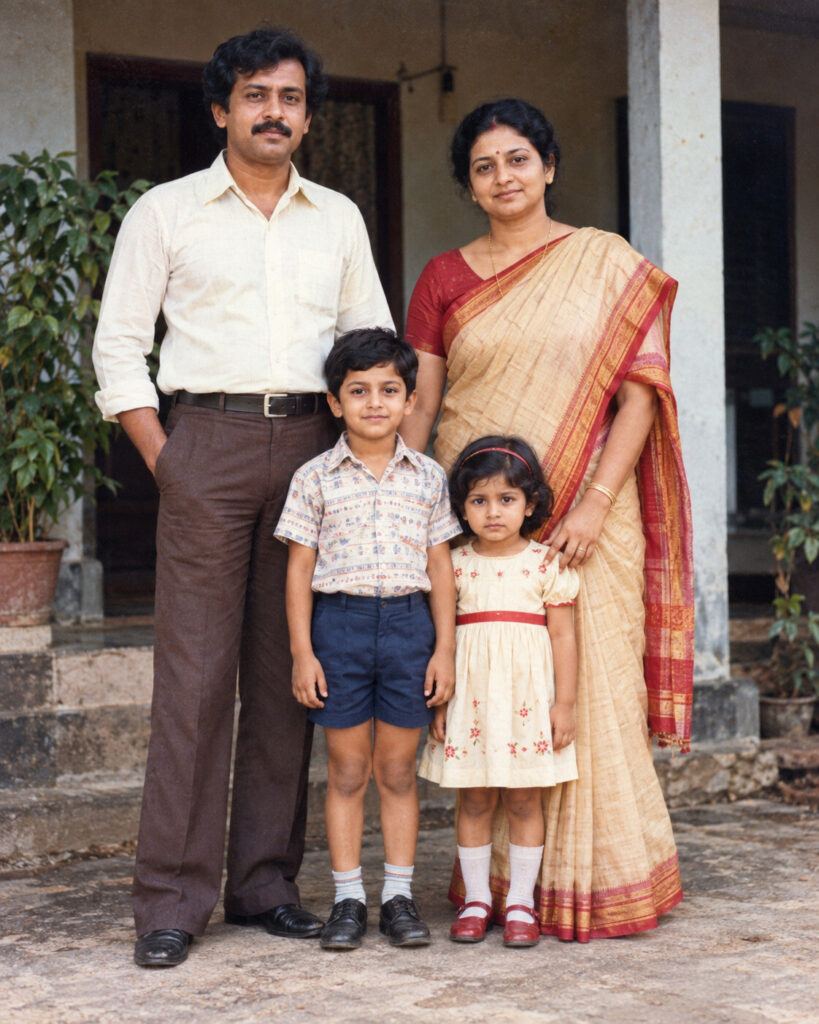
Living Memory – Restored Family Photograph
♡ 10Restore a damaged or faded family photograph with natural color, realistic detail and strict preservation of every person's identity, expression and original pose.
#Vintage Photography#AI restoration#archival photography#family memory#historical photo#photo restoration
Restore the uploaded historical photograph while preserving every person's exact recognizable identity, facial structure, facial proportions, eyes, eyebrows, nose, lips, jawline, cheeks, ears, skin tone, apparent age, hairstyle, expression and overall likeness. Repair scratches, dust, tears, stains, fading, discoloration and missing details conservatively. Preserve the original pose, composition, clothing, background and relationships between people. If black and white, naturally colorize using historically plausible colors without changing the photograph's period character. If color, recover faded colors without modernizing them. Restore realistic skin, hair, fabric and environmental details. Preserve authentic film grain and optical softness. No face replacement, beautification, modern styling, invented people, text or watermark.
Restore the uploaded historical photograph while preserving every person's exact recognizable identity, facial structure, facial proportions, eyes, eyebrows, nose, lips, jawline, cheeks, ears, skin tone, apparent age, hairstyle, expression and overall likeness. Repair scratches, dust, tears, stains, fading, discoloration and missing details conservatively. Preserve the original pose, composition, clothing, background and relationships between people. If black and white, naturally colorize using historically plausible colors without changing the photograph's period character. If color, recover faded colors without modernizing them. Restore realistic skin, hair, fabric and environmental details. Preserve authentic film grain and optical softness. No face replacement, beautification, modern styling, invented people, text or watermark.
Exact historical reference image, every person identity preserved, original facial proportions and expressions, restored old photograph, realistic film restoration, subtle natural colorization, period-accurate tones, repaired scratches and stains, authentic film grain, natural skin texture, original composition, archival documentary photography, high detail
Restore the uploaded old photograph as a professionally preserved archival image. Keep every person exactly recognizable with the same facial structure, expression, pose, clothing, hairstyle and natural apparent age. Remove scratches, dust, stains, tears and fading while carefully reconstructing missing photographic detail. If the original is black and white, apply restrained historically plausible colorization; if already color, restore the faded original colors. Preserve the original composition, background and period character. Keep realistic film grain and natural photographic softness so the result looks like a carefully restored real photograph rather than a newly generated image.
generic faces, changed identity, face replacement, facial beautification, younger face, older face, altered facial structure, changed eyes, changed nose, changed lips, changed jawline, changed cheeks, changed hairstyle, altered expression, modern clothing, modern objects, invented people, removed people, duplicate people, extra limbs, distorted hands, artificial skin, plastic texture, excessive sharpening, HDR, oversaturation, modern cinematic color grading, fantasy elements, CGI, cartoon, anime, illustration, text, captions, logos, watermark, decorative frame, excessive blur, fake film damage
Works with
✦GPT Image✦Gemini image models✦Nano Banana✦Flux
Comments